Live Chat


Brightspace is the website your school runs your courses in. Your syllabus, weekly readings, assignment drop-offs, quizzes, discussion threads and grades all live there, one space per class. It is built by a Canadian company called D2L, which is why half the people around you call it Brightspace and the other half call it D2L.
The awkward part is not the software. It is that almost every guide you will find for it was written years ago, for a screen that no longer exists. This post explains what Brightspace is, shows you where D2L's current student documentation lives, and gives you a ten-second test for any guide you find.
- D2L and Brightspace are the same thing. D2L is the company, Brightspace is the product. D2L's own glossary calls it "a learning management system developed by D2L as an all-in-one solution to facilitate online learning for an organization."
- The tool you submit work to is called Assignments. If your school's menu still says Dropbox, that is a legacy label some institutions kept — not an out-of-date screenshot.
- Brightspace ships a named release every month, so the three campus student guides that rank highest for this question are 128, 81 and 62 months old.
- Your course can use one of three different content views, and D2L's own advice to students is essentially to match the picture to your screen.
- A due date and an end date are not the same setting. Past the end date you cannot submit at all, whatever the due date said.
- D2L cannot reset your password. Your school owns your account; the vendor says so in writing.
What Brightspace is, and why it has two names
An LMS, or learning management system, is one website your school uses to run classes — the place that holds your courses, assignments, grades and class messages. Brightspace is one particular LMS. D2L's Glossary of Terms defines it as "a learning management system developed by D2L as an all-in-one solution to facilitate online learning for an organization," and adds that "Brightspace generally refers to the browser-based user interface, as opposed to our mobile app, Pulse."
The company is D2L, headquartered in Kitchener, Ontario and founded by John Baker while he was a third-year engineering student. It used to be called Desire2Learn, which is where the abbreviation came from, and the same glossary notes that Brightspace "was formerly named Brightspace Learning Environment." All three names point at the same login page.
Two more terms arrive immediately. A course shell is the empty container your school creates for one section of one class before anybody puts anything in it — Kennesaw State's current D2L page uses the phrase that way when it warns a course reset "will return the course back to an empty shell." A gradebook is where scores are entered and stored; D2L writes it as two words and defines the Grade Book as "the part of a course for entering and storing learners' grades in the Grades tool."
Brightspace next to Canvas, Blackboard and Moodle
If you have used another LMS, the concepts transfer completely and only the nouns change. Whole systems move: Brooklyn College, part of CUNY, told its students plainly that "Brightspace is replacing Blackboard as the primary learning management system at Brooklyn College starting in the Summer of 2025."
| What it is | Canvas | Blackboard | Moodle | Brightspace |
|---|---|---|---|---|
| A chunk of the course, usually a week or a topic | Module | Learning module | Section | Unit |
| Where you upload work | Assignments | Assignments | Assignment | Assignments |
| Where your scores live | Grades | Gradebook | Grades | Grades |
| Threaded class conversation | Discussions | Discussions | Forum | Discussions |
Canvas is the one most US students meet first — it is one of the most widely used learning management systems in US colleges and high schools, and our guide to what Canvas LMS is covers the same ground there. Brightspace is the one you are likelier to meet at a school that recently left Blackboard.
Why the guide you found doesn't match your screen
Search for a Brightspace student guide and the top results are downloadable campus PDF manuals. Read the dates embedded in those files rather than the text on the page: the three that rank highest were created in December 2015, November 2019 and last saved in June 2021. Measured on 20 August 2026, that is 128, 81 and 62 months old.
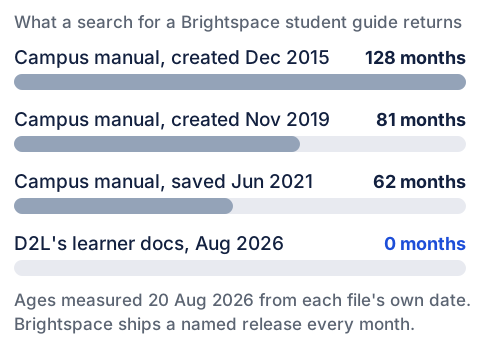
You do not need the metadata to catch them, because they give themselves away in the text. The 2021 guide's system requirements ask for "Operating System: Windows XP or 7 | Mac OS X," recommend "Firefox, Safari," and list a "Sound card." D2L's current browser-support page classifies any browser more than five years old as Unsupported (Blocked) and says flatly that "these browser versions cannot access Brightspace." A student on the Windows XP that guide still lists would not see an outdated screen. They would not get in at all.
That same guide heads a section "Assignment:" and then tells you "the D2L Dropbox allows students to submit their papers to their instructor electronically," step one being "click on the Dropbox tool."
The ten-second test for any Brightspace guide: look for Dropbox used as the name of the submission tool, and for a browser or operating-system requirement. Either one dates the document immediately.
So is it Dropbox or Assignments?
Both, and this is the nuance that "just read the current guide" gets wrong. D2L moved away from Dropbox in favor of Assignments in 2019 — but only as the default for new instances. Schools already running Brightspace could keep the old label, and many did. Canisius University's Center for Online Learning and Innovation published a notice on 20 March 2026 headed "Coming Fall 2026: D2L Dropboxes Renamed to Assignments," explaining that "Dropbox is a 'legacy' term that D2L moved away from in favor of Assignments in 2019, which is the default in new D2L instances," and confirming that nothing about how the tool works is changing.
So if your navbar says Dropbox today, you have not found the wrong menu. You are at a school that kept the older label, and the tool is identical. Even D2L has not fully let go: its live learner article on submitting work still contains the line "if you need to find or cannot access your assignment dropbox, contact your instructor."
Where D2L's current student documentation actually lives
D2L publishes a set called Learner Documentation (Higher Ed) — 88 articles written for students rather than instructors or administrators. That is the thing you want, and it is genuinely current: the login, grades and assignments articles all carry 2026 update stamps, and D2L keeps a running "documentation changes for higher ed learners" log of what changed month by month.
Two things about getting there. First, the old address older campus guides point you to — documentation.brightspace.com/EN/learners/learners.htm — still works, redirecting to the current knowledge base. That redirect is intact, and it is fair to say so.
Second, D2L's knowledge base does drop pages permanently. Its learner article "Access Brightspace" now returns HTTP 410 Gone — a server saying this existed, it was deliberately removed, and it is not coming back, which is a stronger statement than an ordinary 404. Its replacement, "Log In to Brightspace," is live and much better. But any campus page still pointing at the old one is now pointing at nothing, and it is not the only article in that state.
Versions are easy once you know the pattern. Brightspace releases are numbered 20.YY.MM, so 20.26.08 is the August 2026 release — the one this guide was checked against. A new one lands every month, so distrust any document that says "the current version" without naming it; check the release notes index for the month you are in.
Three content views, one course
This is the real reason no two Brightspace guides agree. A course can present its content in one of three different interfaces, and your school chooses. D2L does not try to describe them in the abstract — its instruction to students is, in effect, to match the picture: "if the content in your course appears like the image below, you are using the New Learner Experience."
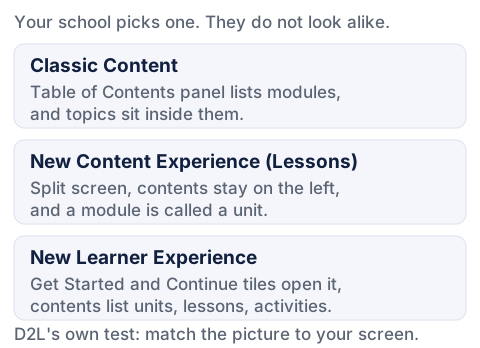
That vocabulary shift matters more than it looks. The newer views label the same object a unit; Classic calls it a module. When a guide says modules and your screen says units, nothing is broken — you are on a different view.
The tools you will use every week
Whichever view you get, the course navbar is the spine of the thing. D2L notes it comes in two flavors, text-based or icon-based, and that "the navbar appearance and course tools can vary by organization" — so a friend in another department may not see the same menu.
| Tool | What it is for | What to check first |
|---|---|---|
| Content | The course material itself, organized into units or modules | Which of the three views you are in |
| Assignments | Where you upload or type work for grading | The Allowed File Extensions list on the submission page |
| Quizzes | Timed and untimed tests, sorted into Current, Future and Past | The number of attempts shown next to the quiz |
| Discussions | Threaded class conversation, usually with a reply requirement | Whether replies to classmates are graded separately |
| Grades | Your scores, comments and any rubric your instructor released | Which columns your instructor has made visible |
The Assignments page is worth two extra minutes. It shows a Completion Status, Score, Evaluation Status and Due Date per item, plus a View History button listing everything you have submitted — the fastest way to settle "did that go through". Your instructor may attach a rubric there; if you have never read one closely, our guide to what a rubric is and how to read one will save you points, and worked discussion board post examples do the same for Discussions.
Grades has one quirk: what you see is not the whole gradebook. D2L tells students outright that "you may not see every column shown in this documentation" because "your instructor controls the items you see in your grade book."
Due dates, end dates and the quiz list
Brightspace draws a distinction here that costs real points, because most announcements mention only one of the two. D2L defines a due date as "the submission deadline of an assignment in your course." The end date is separate: "the final date an assignment is available for you to submit to, regardless of the due date," and "once the end date of the assignment is past, you are no longer able to submit, no matter what the assignment's due date is."
Missing a due date usually means a late submission your instructor still receives. Missing an end date means the upload box is closed. D2L points you to the Assignment List page, where the hover tooltip carries the start and end dates.
Quizzes follow the same logic. The Quiz List sorts into Current, Future and Past: future quizzes are visible but "cannot be accessed since the start date hasn't been reached yet," and past ones may or may not stay visible, depending on your school. A quiz taken after its due date is still accepted, D2L notes, but "your submission will be tagged as a late submission."
When your course isn't showing up
This is the most common first-week panic, and almost never a broken account. Courses appear and disappear on a schedule your instructor sets, and Kennesaw State publishes its windows plainly: new students "will not have an account in D2L until courses for the upcoming term are loaded into D2L, approximately one month before the start of term," a registered course is not visible "until the published start date of the course unless the start date has been adjusted by the instructor," and courses stay visible "until 60 days past the published end date."
Click the waffle icon at the top of the page. It lists every course you are enrolled in, including ones the My Courses widget has not surfaced.
D2L says a course showing as available but refusing to open usually means its start date has not begun. A course that vanished has probably passed its end-date window.
Enrollment, start dates, end dates and whether an old course stays on your homepage are controlled at the course level, and D2L routes every one of those questions to the instructor first.
If the instructor is unreachable, the department or campus help desk owns it. Note the exact course code and what you see on screen before you write.
Who can actually help you
One fact will save you an afternoon: D2L cannot fix your login. Its own current article says so as directly as it can — "your organization manages your Brightspace account and login credentials. D2L cannot reset your password, provide your username, or create accounts." If your campus uses single sign-on, your Brightspace password is simply your school password, reset through your school's system and never through Brightspace. Bookmark two pages now, not at 11pm on a Sunday: your school's own Brightspace help page, and D2L's Learner Documentation.
And if the real problem is not the platform but the weekly rhythm behind it — a quiz window, a discussion post, two replies and an assignment upload, every week, in four courses at once — that is a workload question, not a software one. Our Brightspace (D2L) class help starts at $37.89 a week: we never ask for your login, the work is prepared and delivered to you, and you review it and submit it yourself under your own account.
Brightspace is not complicated once the vocabulary settles. A course shell per class, a navbar across the top, content in units or modules, work into Assignments, scores in Grades. The genuinely hard part is that the internet is full of confident instructions written for a version of it that stopped existing years ago — and now you can spot those in about ten seconds.