Live Chat


There is no fixed number, and that is not a dodge — it is the mechanic. A MyLab Math course can limit how many times you work the whole assignment, how many times you work one question, and how many times you check one part of that question. Those are three settings in three separate places, and Pearson's instructor documentation says only that the per-part limit does not affect the per-question one. So "how many attempts do I get" has three answers at once, all chosen by your instructor, and whichever runs out first ends the question. Here is how each limit works, and how to read your own screen instead of guessing. (If your course says MyMathLab, you are in the right place: Pearson's old mymathlab.com address now redirects to its MyLab Math page.)
Pearson no longer serves its MyLab Math manual as readable web pages, so every Pearson quotation in this article — the takeaways immediately below included — is from the manual it does still publish: its MyLab Foundational Skills help set, which documents the same MyLab player, assignment wizard and Gradebook by those names. It is not a MyLab Math manual, so check any control name here against your own screen. Why, and where the labels differ, is set out below.
- An attempt and a try are different units. Pearson: "you could give students 5 attempts at an entire question but limit the number of tries per part to 2."
- Asking for help can cost you one. Where an attempt limit is in force, opening the tutorial — the button your MyLab Math screen calls Help Me Solve This — spends an attempt: "Students use one of their attempts when they access Help Me Answer This in the player."
- The button tells you where you are. Check answer becomes Final check when attempts are running out, and Similar question once you have answered.
- Form and value are scored separately. One math question carries an answer tolerance and a separate setting for answers that are correct but unsimplified.
- Partial credit is a checkbox. Turn it off and "students get a 0 score on a multipart question when they answer any part incorrectly."
- Grade sync runs one way. MyLab holds the score; your LMS gradebook gets a copy, and the point totals can legitimately differ.
"How many attempts" is three questions wearing one coat
Start with Pearson's own vocabulary, because MyLab meters three units and most explanations describe one. Attempt and try are Pearson's words for different things: an attempt is one pass at a question or at a whole assignment, and a try is one check of one part of a multipart question. Pearson keeps submission for the act of handing work in — as in its "late submission penalty", its Require final submission setting for late work, and the Submit button on a test. On the student's screen the two flows end differently: Pearson's documented homework flow ends at "select Close to enter your score in your instructor's gradebook", while an assessment ends at "select Submit test". Homework, as Pearson documents it, has no Submit step: you close it, and the score goes to the gradebook.
That vocabulary does not travel. Cengage's WebAssign meters the other word entirely: its student guide says "Each time you submit answers to WebAssign, you use a submission." Same student, different unit on the counter.
Pearson's assignment settings page defines the two attempt limits in consecutive lines. "For Attempts per assignment, select the box to limit the number of times students can do this assignment before the due date." And "For Attempts per question, select the box to limit number of times students can work each question."
The third limit lives on the question. Pearson's page on managing questions calls it "the number of times your students can attempt a part in a homework question." Then it draws the line that answers your search: "This setting does not affect the number of times that students can attempt the entire question. For example, you could give students 5 attempts at an entire question but limit the number of tries per part to 2."
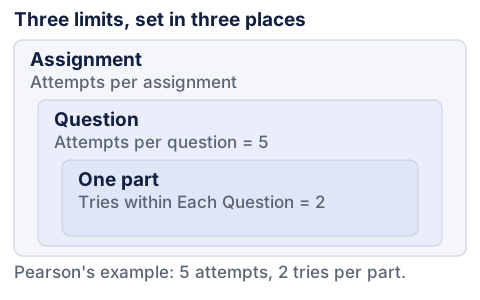
Two consequences catch people out. First, the number you were counting may not be the number that stops you: tries on a part and attempts at the question run down separately. Second, in the same paragraph as the attempts-per-question setting: "Students use one of their attempts when they access Help Me Answer This in the player." That is the tutorial button, and it is where the two manuals part company on wording: on a MyLab Math screen the same control reads Help Me Solve This — the name Florida International University's Mastery Math Lab uses for "the 'Help Me Solve This' button that offers guided solutions to a similar problem." One control, two names. If your course caps attempts, opening it spends one.
Where you look this up matters. Pearson's MyLab Math help bridge now routes both manuals to a viewer at support.pearson.com that returned HTTP 200 and rendered nothing but a "Sorry to interrupt" panel for us — over a "CSS Error" line in the browser fetch — under a browser user agent and a Googlebot user agent alike. Two older static copies survive on Pearson's help domain, footered © 2015 and © 2014, and those are what search engines surface. They also describe an older player than the one you are using, and the two most quotable facts on this subject — a stated default number of tries, and a rule for which attempt counts — survive only there.
Nothing here is quoted from either, and neither of those two facts is in this post. Every Pearson quotation in this post comes instead from the manual Pearson does still publish as ordinary web pages, each page stamped Updated 16 Sep 2025: its MyLab Foundational Skills help set. It documents the MyLab player, the MyLab assignment wizard and the MyLab Gradebook by those names, and the settings quoted here are the ones that apply to math questions — but it is a sibling product's manual, not MyLab Math's, so check any control name against your own screen.
What Similar question does, and what Pearson does not publish
Inside the player, the button is the status display. Pearson's student page: "When you run out of attempts, the Check answer button changes to Final check." And separately: "When you have answered, the Check answer button changes to Similar question." You then "select Similar question to try again or use a navigation arrow to continue to another question."
Here is what the pages Pearson still publishes as readable help do not say. They give no default number of tries, and they do not state whether a fresh Similar question replaces your existing score or only improves on it. Those are course-level facts, and courses differ sharply.
| Course | Homework attempts | What happens next |
|---|---|---|
| UC San Diego, Math 18, Winter 2025 | "unlimited attempts on each homework problem" | "after three incorrect attempts, you will be offered a 'Similar question' which is the same problem but with different numbers" |
| Florida International University, Mastery Math Lab | "Each homework problem can be attempted an unlimited number of times" | Quizzes differ: "A quiz can be taken up to two times and the highest grade is recorded" |
| Mississippi State, College Algebra (Pearson case study, Dec 2021) | "unlimited attempts on homework assignments up until the due date" | The instructor "allows students to earn a second and third attempt for each quiz by completing their homework assignments" |
Three US programs, one product, three configurations — the third published by Pearson itself in December 2021, from a course it studied between Fall 2015 and Spring 2017. Ask your instructor what your course does; there is no universal answer to find.
The grader checks the value and the form, separately
"For some numeric questions," Pearson tells instructors, "you can adjust how much tolerance is allowed for numerical answers." On those questions your answer is not compared to a number. It is compared to a band, and that band is a setting. Pearson's question-scoring page is written for instructors working "in preview-and-add mode": they "hover over the triangle in the corner of the answer box in the player" to see "the tolerance set by Pearson", then "Set an absolute tolerance" from a list or "Set a percentage tolerance" by typing one in. What matters to you is the default: on those questions a band is already in force whether or not your instructor touched it, and nothing on your screen says how wide it is.
Form is a second, separate dial on the same question. Pearson's list of what an instructor can edit for math questions runs: "the answer tolerance," credit "for unsimplified answers," and "whether students are required to show their work." That setting has a stated default and an override — "No credit: The default setting for unsimplified answers" and "Award partial credit: Enter a percentage of full credit to award for an unsimplified answer that is equivalent to the correct answer."
Work that through. A question is worth 3 points and you enter 6/8 where the key is 3/4. Equal in value, different in form. On Pearson's default of No credit you score 0 of 3. If your instructor set the unsimplified award to 50 percent, you score 3 × 0.50 = 1.50 of 3. Same arithmetic, same student; the difference is a setting you never saw.
Simplify before you submit, even when the question does not ask you to. It costs nothing when the setting is generous and it is the whole question when it is not.
Partial credit is one checkbox, and it can zero a question you mostly got
Multipart questions diverge hardest from what students expect. The rule sits in the assignment's scoring options: "If you uncheck partial credit, students get a 0 score on a multipart question when they answer any part incorrectly."
Take a five-part question worth 5 points, a point per part. You answer four parts correctly and run out of tries on the fifth. With partial credit on, you score 4 ÷ 5 = 0.8, or 80 percent. With it unchecked, you score 0. Four points of correct work, gone on one checkbox.
Two related settings change how you should work, and neither is yours to set. "Select Lock Correct Answers to preserve correct answers when students work on a multipart question" — an option that "appears only when you allow more than one attempt per part of a question." Coming back later is a different setting again: "Select Save values to preserve question values and student answers when students return to the homework." Between them they decide how much of your earlier work is still on the screen when you reopen a question.
Late work: the checkbox worth 35 percentage points
Deadlines in MyLab are not a wall by default. Instructors can allow late work and attach a penalty: "Select Deduct late submission penalty to automatically reduce the score for a late assignment." They then choose "whether to deduct from the final score or to deduct an amount for each day that the assignment is overdue."
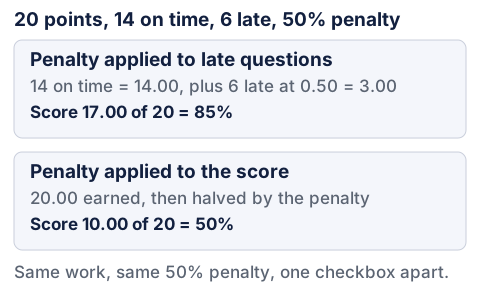
Then comes the setting nobody explains. On homework, the penalty can hit only the questions you finished late — or the whole assignment score. Pearson's line for the second case: "If this option is unchecked, the penalty is deducted from the assignment score."
Run one assignment through both. Twenty questions, one point each, 50 percent late penalty — the figure UC San Diego's Math 18 page publishes, telling students they "may continue to work on problems you did not complete before the deadline, for 50% credit until March 17, 2025." You answer everything correctly, 14 before the due date and 6 after. Applied to late questions only: 14 × 1.00 = 14.00, plus 6 × 0.50 = 3.00, giving 17.00 of 20, or 85 percent. Applied to the assignment score: 20.00 × 0.50 = 10.00 of 20, or 50 percent. Identical work, 35 percentage points apart.
The cheapest thing you can do about MyLab is finish before the deadline. A record of what is due, kept outside the platform, is worth more here than any formatting habit.
Mastery, completion, and how the score reaches your LMS
MyLab documents both halves of this pair, which not every platform does. Mastery is a state the platform records, and Pearson names two ways in: "Mastered-tested - mastered on an assessment" and "Mastered-worked - mastered by meeting requirements specified by the instructor." Completion is finishing the work, and on MyLab it can be what mastery is measured on — Pearson's instructor help describes courses that use "activity completion for topic/lesson mastery" to decide it. The bar is a number your instructor types: "Enter the minimum score students must achieve to demonstrate mastery."
Which attempt counts on a quiz is also a setting. Pearson's Adjust scoring page: "Attempts to Include - When a student has taken an assessment multiple times, this setting determines which score is included when calculating the student's overall score for a content area or average score for the quizzes and tests gradebook categories." Most recent score, Average score and All scores are the three choices Pearson names there, and it adds that the last two are unavailable once the MyLab gradebook is synced to an LMS. Mastering, on the same Pearson account, settles which one counts: "You can complete such assignments between 2 and 5 times, depending on how the assignment was set up," and "Only your best score is recorded in your instructor's gradebook and on your Scores page."
The score travels. Pearson's LMS page is unambiguous: "Grades automatically sync when students complete their assignments, but there might be a brief delay. Important: Syncing is one-way, from your MyLab gradebook to your LMS gradebook." MyLab grades the work and holds the score; Canvas or whichever LMS your course uses gets a copy.
That copy need not carry the same point total, which is why the two numbers can disagree without either being wrong. Pearson's examples use one assignment: under Assignment Raw Scores, "if your assignment has 5 questions worth 3 points each, the LMS item will be worth 15 points total"; under Assignment Weighted Scores, "if your assignment has 5 questions worth 3 points each, but the assignment weight is set to 10, then the LMS grade item will show a total of 10 points." Score 12 of 15 in MyLab and you have 80 percent. The first mode shows your LMS 12 of 15. The second shows 0.80 × 10 = 8.0 of 10.
One timing rule saves a panic: "Scores on a test or quiz are not synced until students select Submit for the assignment." A finished-looking test that was never submitted has not reached your LMS gradebook. If your course runs tests under the Pearson LockDown Browser, the rules of the sitting are a separate matter from how questions are scored.
Work through a wrong answer in this order
The order you check things in decides how many attempts you burn. Read the screen before you retype the number.
Check answer means you have room. Final check means this is your last try on this part. Similar question means the question is settled and a fresh version is on offer. Three situations, three right moves.
On some numeric questions a tolerance is already set, and your instructor can widen or narrow it. Pearson documents the triangle that shows the band on an instructor page, not a student one, so do not count on being able to read it yourself. If your value is close but rejected, the form of the answer is the likelier problem than the digits.
An equivalent but unsimplified answer scores zero on Pearson's default. Reduce the fraction, rationalize the denominator, and match the form the prompt named before you spend another try.
Where attempts are capped, opening the tutorial button — Help Me Solve This on a MyLab Math screen — uses one. If you are down to your last, work the problem on paper first and spend the attempt on the answer, not the walkthrough.
Whether correct parts and question values survive a return trip is decided by Lock Correct Answers and Save values, and you set neither. The player also ends an idle practice session: "In most cases, the session ends after you have been inactive for more than 30 minutes." That clock has a documented exception — "The inactivity timeout does not apply to assessments, tests, and quizzes."
"When you finish, select Close to enter your score in your instructor's gradebook." Then give the LMS a moment; the sync is automatic, not instant.
None of this makes MyLab pleasant. It does make it legible: once you see three limits instead of one number, and a value check separate from a form check, a rejected answer becomes a short list of things to look at.
And sometimes the problem is not the settings. It is four MyLab assignments due in one week and you are rationing attempts at midnight. If that is where you are, our Pearson MyLab help starts at $37.89 a week: we prepare the coursework and hand it to you, and you review it and enter it yourself from your own account. We never ask for your login and we do not submit on your behalf. What goes in the answer box stays yours to stand behind.