Live Chat

Blackboard is the website your school uses to run classes online. Each class you are enrolled in gets its own space inside it, and that space holds the syllabus, the readings, the assignment drop-boxes, the tests, the discussions and your grades. Your instructor puts the work there; you open it, complete it and submit it in the same place. That is the whole idea, and it is the same idea behind Canvas, Moodle and Brightspace.
What makes Blackboard confusing is not the concept. It is that Blackboard currently ships in two completely different-looking versions — Ultra Course View and Original Course View — and which one you get is decided course by course. Two classes in the same term, on one login, can look nothing alike. The help pages are split down the same line, so a search result can walk you through buttons that are not on your screen. Working out which view you are in takes about ten seconds, and it is the first thing to do.
- Blackboard is a learning management system (LMS) — one site holding your courses, materials, assignments, discussions and grades.
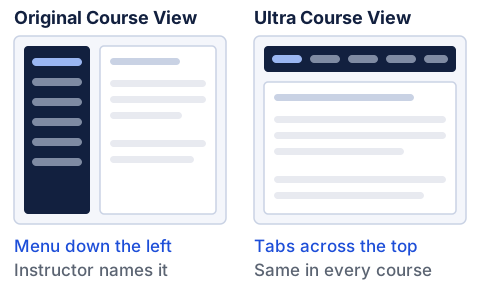
- Two views exist and both are current. Ultra Course View puts a fixed bar of tabs across the top of a course. Original Course View puts a menu down the left side, named and colored by your instructor.
- The fastest tell is your course card. Blackboard's own student help says to "look for the ‘Original Course View’ label on your course card." Ultra courses carry no label.
- Two separate settings decide what you see — one your school makes for the whole institution, one made per course. That is why your classes disagree.
- Original Course View is being retired. Blackboard's documentation gives December 31, 2026 as the last day changes can be made, and January 1, 2027 as the date those courses become read-only.
- The product is now called Blackboard LMS. "Blackboard Learn" is the older name, and it is the one still printed on most pages that rank for it.
What Blackboard actually is
Three words do most of the work here, and they mean the same thing on every platform.
An LMS, or learning management system, is a website your school uses to run classes online. It is a classroom, a mailbox and a gradebook on one screen. A course shell is the container your school creates for one section of one class — it exists, empty, before your instructor puts anything in it, which is why a course can be on your list in August and hold nothing at all. A gradebook is the page inside a course that lists every graded item, your score on each, and, if your instructor turns it on, a running overall grade.
Blackboard is one of the longest-running LMS platforms in US higher education, and its age shows in the software. Its own administrator documentation describes Original Course View as the one that "most closely mirrors the course experience in Blackboard 9.1." Ultra Course View is the rebuild, and Blackboard's own summary of the trade-off is even-handed: Ultra is "simpler and more modern," while "more experienced users may find the Ultra Course View limits their ability to customize their courses."
One naming note, because it explains why your search results feel dated. The product is now called Blackboard LMS. The vendor lists it that way in its own product menu, and the student documentation opens "New to Blackboard LMS? Start here." Blackboard Learn is the previous name and still what most pages ranking for it print — a fair sign the page has not been revisited lately.
Why two of your classes can look nothing alike
This is the part that rarely gets explained to students, and it is not complicated once you see it. Two independent settings decide what Blackboard looks like for you.
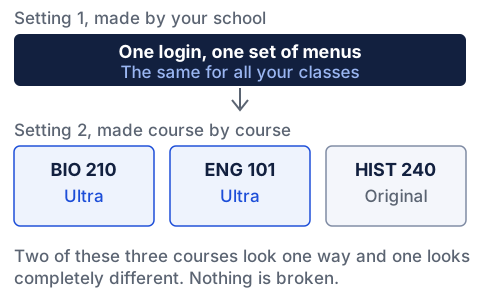
The first belongs to your institution and covers everything outside a course: the menus you land in after logging in, your profile, your calendar, your course list. You cannot change it, and it is the same whichever class you open.
The second is made per course, and Blackboard's administrator documentation spells out the options. "After you enable the Ultra experience for your institution, you can determine the course view for instructors and students," it says. A school can specify Original Course View, specify Ultra Course View, "or you can leave it up to the instructor to decide which course view fits their needs." It also notes that the setting "applies to newly created courses," so older courses keep what they had, and that the view can still be changed one course at a time.
Under Instructor Choice, Blackboard notes, courses "appear in the Original Course View" the first time an instructor opens them, and the system then offers the choice. So the professor who has taught the same seminar for nine years and your new biology instructor can genuinely end up in different software, for reasons that have nothing to do with you. None of it is a fault, and none of it is yours to set. The only useful move is to identify which one you are looking at.
Working out which view you are in
Three steps, in order, using only what is already on your screen.
Blackboard's student help describes the Courses page as available "as a list or a grid," with each card showing the course ID, course title and instructor. The list and grid icons sit at the top of the page, next to the search bar. Switch to the list.
Blackboard's own Original Course View page says exactly what to look for: "If your institution offers both Ultra and Original views, look for the ‘Original Course View’ label on your course card." Ultra courses carry no such label. The University of Alaska Anchorage's student guide adds the detail Blackboard leaves out — that identifier "is not viewable in Course Grid view, only in Course List View," which is why step one is switching the view.
The label settles it, but the layout confirms it in a second and works even if your school has customized the course list. Look for a menu down the left edge. If it is there, you are in Original. If instead there is a row of tabs across the top and no side menu, you are in Ultra.
Here is the same thing as a lookup, once you are inside a course.
| What you check | Original Course View | Ultra Course View |
|---|---|---|
| Your course card in list view | Labeled "Original Course View" | No label |
| The menu | A column down the left; your instructor controls which links appear and can change its color and style | A row of tabs across the top; not customizable, and the same in every Ultra course |
| The page you land on | Whatever your instructor chose — often Announcements, but it varies by course | The Content page, every time |
| Where your grades sit | A page called My Grades | A tab called Gradebook |
| What holds a week of material | A content area linked from the course menu | A learning module or folder on the Content page |
Where everything lives once you are inside
In an Ultra course
Everything hangs off one bar. Blackboard's student documentation lists it plainly: you open frequently used pages with the navigation bar, selecting the Content, Calendar, Announcements, Discussions, Gradebook, Messages, Groups and Achievements tabs. Unused pages are hidden rather than grayed out, so a missing tab usually means your school does not use that tool — not that you lack access.
Course material sits in the main part of the Content page, in a single scrolling list. Folders and learning modules open in place. Beside the content is a Details & Actions panel holding the roster, the course description, progress tracking, groups, attendance and the tools your institution has added.
Grades work in two layers. The Grades item in the outer menu shows every course at once. Inside a course, the Gradebook tab lists each graded item with its status, your attempts and any feedback; a purple dot marks anything newly graded. A Current Grade appears only if your instructor set up an overall grade. Where a rubric is attached to an assignment, you can open it from the same place.
In an Original course
The structure is older and more variable, because more of it is left to the instructor. The course menu down the left is, in Blackboard's words, "the access point for all course content," and "instructors control which links appear." They can also change its color, add subheads and dividers, and choose buttons or text — customizations that, the documentation notes, "create variations in the look and organization of your courses." Two Original courses at one school can therefore look nothing like each other either.
The links on that menu that hold material have a specific name worth learning, because it is the word the help pages use. Blackboard: "Links that hold content are called content areas. For example, an instructor may add a content area that contains a week's worth of course material." Beside the menu is the content frame, which displays whatever you selected, and your instructor "chooses the page that appears here when you enter a course."
Grades live on a page called My Grades, listing the coursework for the course you are in, with status icons where something has not been graded yet. What Original calls the Discussion Board is simply Discussions in Ultra, and our discussion board post examples apply to both. Tests work much the same way in either view, and where a course requires supervision a separate tool is added on top — covered in what a proctored exam actually involves.
If your last school used Canvas, Moodle or Brightspace
Most of what you already know transfers; only the labels change. The equivalence students most need is the container that holds a week or a unit of material: Canvas modules ≈ Blackboard content areas ≈ Moodle sections ≈ Brightspace units. In Blackboard's newer Ultra Course View that container is called a learning module, and the older content area is the Original Course View term for the same job.
You do not have to take our word for the mapping. Blackboard publishes a terminology table for each platform it helps institutions migrate from, filed where an instructor would find it and nowhere a student would. Pulled together, the three tables read like this.
| Canvas | Moodle | Brightspace | Blackboard |
|---|---|---|---|
| Modules | Sections | Units | Learning Modules |
| Grades | Grades | Grades | Gradebook |
| Quizzes | Quizzes | Quizzes | Tests |
| Assignments | Assignment | Assignment | Assignments |
| Discussions | Forum | Discussion | Discussions |
| Pages | Page | HTML Document | Documents |
| People | Participants | Classlist | Roster |
If you are coming from Canvas, which is one of the most widely used learning management systems in US colleges and high schools, the habit that transfers best is checking one page daily. The habit that does not transfer is muscle memory for where things sit, and the table above is faster than hunting for it.
Why this is the last year Original exists
If your course is in Original Course View this term, it is worth knowing what is scheduled, because the dates are published and they are close.
Blackboard's instructor documentation states that you "will no longer be able to use the Original Course View for active teaching and learning after December 31, 2026," and that all courses "will be required to use the Ultra Course View starting January 1, 2027." Its published timeline runs: August 6, 2026, in-course notices begin, shown to non-student roles; December 31, 2026, the final day changes can be made; January 1, 2027, Original courses are marked Complete and become read-only — no grading, no participation, no submissions — and stop being reachable in the Blackboard app; January 1, 2028, they are converted to Ultra.
Note who gets told. Those notices go to non-student roles, so your instructor sees them and you do not. Nothing here threatens your work — the courses become readable, not deleted, and Blackboard says a playback environment exists for institutions that need to restore an Original course in its original format, for circumstances such as grade disputes. But if you finish a fall course in an Original shell and plan to reopen it in February to pull a paper or a rubric for a portfolio, expect it to be read-only. Download what you will want before the term ends. And if your spring courses look different from your fall ones, that is the migration, not a mistake.
Reading the right half of Blackboard's help site
Blackboard's student documentation is genuinely good, and it is where to go when something specific breaks. It has one structural trap.
The English student help tree holds 228 topic pages under nine top-level sections. One of those sections is a single branch named Original Course View, and it carries 98 of the 228 pages — its own Getting Started, its own Grades, its own accessibility guides, its own FAQ, duplicating subjects the rest of the tree already covers. Everything outside that branch describes the Ultra screens, with one exception the documentation flags itself: the app section notes that the Blackboard app "Supports both Original and Ultra courses." So the site knows how to tell you when a page covers both. Nothing at the top of the tree asks which branch is yours.
Neither does the FAQ. Blackboard's student-facing course FAQ answers nine questions, from finding your courses to losing work mid-task. Which course view you are in is not one of them.
There is a reliable tell, and it is in the page title. Pages describing an Original course screen have their heading prefixed with the word ORIGINAL — "ORIGINAL Access Blackboard", "ORIGINAL Types of Course Content", "ORIGINAL Grades" — 69 of the 70 such pages in the branch. The exceptions are the branch's own front page, headed simply "Original Course View", and the 28 file-storage pages filed under it, which carry no prefix. Neither do pages describing Ultra. So the tell runs one way, which is enough: a heading beginning ORIGINAL is an Original page, so if you are in an Original course and the heading has no prefix, check before you follow the steps. Search results land on either half at random, which is exactly how you end up hunting for a button that was never on your screen.
Check the date on anything else you find, too, whether it is Blackboard's or your campus IT department's. Blackboard ships numbered releases roughly monthly — version 4000.21 reached production on August 8, 2026 — and it moved its whole documentation set to a new address during 2026, so links on older campus guides now redirect. One of the pages still ranking for how to tell Ultra from Original is a campus PDF created in March 2020, and its screenshots are six years old.
None of this is hard once you have named your view. Identify it, read the matching half of the documentation, and Blackboard goes back to being what it is: the place your semester is kept.
If the problem is not the platform but the volume of work inside it, that is a different fix. Our Blackboard coursework help runs alongside a live course from $37.89 a week: we prepare the essays, discussion drafts and assignments to your rubric and deadline and hand them to you, and you review and submit them yourself from your own account. We never ask for your login, and nothing we do touches your course.
Blackboard behavior above was read on August 20, 2026 in the vendor's current student, instructor and administrator documentation, which now lives at help.anthology.com since the help.blackboard.com addresses began redirecting there. Every page cited carried a "last modified" date between July 14 and August 17, 2026. Screens change: check the label on your own course card rather than trusting any screenshot, including a recent one.