Live Chat


WebAssign did not compare your answer to the stored one and find them different. It checked whether your number landed inside a window around the stored value, and then, if the question checks significant figures, it checked separately whether you typed the right number of digits. Either check can fail on its own. The window is a setting, the digit check is a switch, and your instructor can change both.
The number everyone repeats is 2%. It is real — WebAssign's student help says "By default, numerical questions require the answer to be within 2% of the correct value" — but it is one of three defaults Cengage publishes, and it is the one that applies when nothing else does. That table lives in the instructor guide, which is why you have never seen it.
- Three default tolerances, not one. A fractional answer defaults to 0. A question checking significant figures defaults to ±1 at the last digit. Everything else falls back to ±2%.
- Sig-fig checking replaces the 2% window rather than adding to it.
- On a question that checks digits, too many can earn partial credit. Too few never earns anything.
- A submission is a metered unit, and under one of the three assignment rules a single click spends one on every question, including the ones you never opened.
- Four scoring methods exist. On Cengage's own scenario, one set of answers scores 3, 4 or 5 points depending only on which the instructor picked.
- Read the answer format tip first. It is the only thing on screen that tells you which regime you are in.
Three default tolerances, and yours is probably not 2%
Cengage's instructor page on changing tolerance for numerical questions puts the whole picture in one small table: "The default tolerance for numerical questions depends on the type of question."
| If the numerical question… | Its default tolerance is… | What that means for you |
|---|---|---|
| "Requires a fractional answer" | 0 | Nothing but the exact fraction scores |
| "Checks significant figures or decimal places" | ±1 at the last digit | Your last digit sets the window, not a percentage |
| "Does not otherwise set the tolerance" | ±2% of the answer key | The familiar fallback |
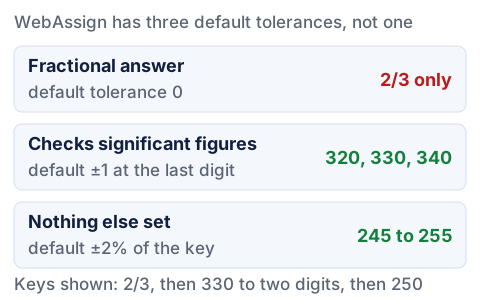
Two of these are easy to picture. Under the ±2% fallback a key of 250 accepts anything from 245 to 255, a window five units wide on each side. The zero-width case produces the angriest emails. Cengage's troubleshooting page says it plainly: "Most math questions require an exact answer, not a decimal approximation." It pairs an approximation of .67 against an exact answer of 2/3. The margins are almost comic. Typing .67 puts you 0.5% high; 0.667 gets you to 0.05% high. Under ±2% both score comfortably; under a tolerance of 0, neither does.
Five places the tolerance can be set, and which one wins
A tolerance is not one number in one place. Cengage's page on numerical tolerance lists five levels in precedence order, and the top of the stack silently overrules everything below it.
| Level | What Cengage says about it |
|---|---|
| Per-question assignment setting | "Overrides all other tolerances" — and applies to every part of the question |
| Assignment setting | Overrides everything below it |
| Class setting | Overrides everything below it |
| Question code | "Overrides default tolerance" — textbook questions set their own where the question needs it |
| Default | "If no other tolerance is set, WebAssign uses a default tolerance of ±2%." |
The fourth row is where the surprises come from, and Cengage names the case — "If needed, textbook questions set tolerances for the question or specific question parts—for example, math questions requiring simple integer computation or fractions set a tolerance of 0" — so a zero-width window is not a choice somebody made about your section. It is the shipped setting on a category of question.
Turn sig-fig checking on and the 2% window is gone
This is the fact that would save the most points, and the student guide mentions it only in passing — one clause in a closing note on its page on rounding values. The student page quoted at the top of this article gives the 2% default and never says what replaces it. From Cengage's page on checking significant figures in numerical questions: "When your question checks significant figures, the default tolerance for the question is ±1 at the last significant digit. For example, if the answer is 330 to 2 significant digits, the responses 320, 330, and 340 would all be accepted."
Read that against the 2% you were assuming. On a key of 330 the sig-fig window runs 320 to 340, wider than the 323.4 to 336.6 that ±2% would give — but only because the last significant digit sits in the tens. Move the key and it inverts: on a key of 12.28, ±1 at the last digit accepts 12.27 through 12.29, a window of about ±0.08%, where ±2% would have accepted 12.0344 through 12.5256. The percentage never enters the calculation. Decimal-place checking is a separate switch working the same way: "if the answer is 1.33 to 2 decimal places, the responses 1.32, 1.33, and 1.34 would all be accepted."
Cengage's assignment-level significant figures settings publish the worked table for a tolerance of 2 at the last digit.
| Answer key | Answers counted as correct | The detail worth noticing |
|---|---|---|
4100 | 3900, 4.0e3, 4100, 4200, 4300 | 4000 is written 4.0e3, because plain 4000 reads as one significant figure |
12.28 | 12.26, 12.27, 12.28, 12.29, 12.30 | Same tolerance setting, a window of about ±0.16% |
0.04 | 0.04 | "Tolerance is ignored when the answer key sets the number of significant figures to 1" |
One of Cengage's own questions, worked all the way through
Cengage's significant-figure checking page prints a real item, question ID 1079760: "If the space shuttle maintains a constant speed of 7740 m/s for 32.5 minutes, how far will it have traveled?" in kilometers, coded to three significant figures.
32.5 minutes × 60 = 1950 seconds. 7740 m/s × 1950 s = 15,093,000 m, which is 15,093 km. No rounding yet.
Three significant figures turns 15,093 into 1.51e4. Cengage is explicit that this happens even to the instructor's own value: "it will be rounded to the correct number of significant figures and the tolerance will be based on the rounded answer."
The default is ±1 at the last significant digit. That digit is the third, so the values inside the default window are 1.50e4, 1.51e4 and 1.52e4.
Typing 15093 gives the exactly correct distance and five significant figures where three were wanted. 15000 gives two. Neither is a calculation error, and only the first has a route to credit.
That asymmetry is the part students find hardest to believe. Cengage's student page on questions that check significant figures puts it in one sentence: "If enabled by your instructor, you might receive partial credit if you specify the correct value with more than the required number of significant figures. No credit is awarded if you specify too few significant figures." The opening conditional matters — partial credit is a switch with a percentage attached. Cengage's illustration: "if you enabled 50% partial credit and the answer key is 40, a student who submitted 41.2 would receive 0.5 points for a 1-point question."
Extra digits are survivable; missing digits are not. And drop the thousands separators: "Commas are not allowed when significant figures are checked."
How WebAssign counts digits, and why your textbook gets no vote
WebAssign counts significant figures its own way and says so bluntly on its significant figure calculation page: "Regardless of what your instructor or textbook teaches, you must follow the rules listed here to receive credit for answers that are required to be specified to a certain number of significant figures." The next two sentences are the useful ones and almost nobody quotes them: "If your instructor or textbook teaches significant figures differently than these rules, tell your instructor. Your instructor can turn off significant figure checking for assignments."
Counting the digits in a written number is conventional. The rules for an operation are where a defensible answer goes wrong, because they fix the digit count before you reach the box.
| Operation | The rule, as Cengage states it | Their example |
|---|---|---|
| Addition and subtraction | "Use the fewest number of decimal places specified in any of the operands." | 3.1415 − 2.2 = 0.9 |
| Multiplication and division | "Use the fewest number of significant figures specified in any of the operands." | 444 ÷ 111 = 4.00 |
| Exponentiation | "Use the same number of significant figures as the base." | 2 to the tenth power = 1e3 |
| Logarithms | Decimal places out match significant figures in | log₁₀(27) = 1.43 |
The first row explains a whole category of "but I did it right." Subtract 2.2 from 3.1415 and the honest arithmetic gives 0.9415, but the operand with the fewest decimal places has one, so WebAssign's value is 0.9. A student who types 0.9415 has not miscalculated; they have supplied four significant figures where the rule set produces one.
A submission is a unit, and three rules spend it differently
Cengage defines the currency in one line on its page about submitting answers: "Each time you submit answers to WebAssign, you use a submission. After you use all of your allowed submissions, you can't change your answers, even if the assignment due date has not passed." What one click costs depends on the Assignment Submission rule at the top of your assignment.
| Assignment Submission rule | What one click submits | What it costs |
|---|---|---|
| Question Parts | "only question parts with new or changed answers are submitted" | "No submissions are used for question parts that you did not change." |
| Questions | "the entire question is submitted, including unanswered question parts and question parts for which you did not change your answer" | One submission for that question |
| Entire Assignment | "all of your answers for the assignment are submitted. This includes unanswered questions and questions for which you did not change your answer" | "all questions are submitted and a submission is used" |
Under the third rule, on a twenty-question assignment, testing one fix on question 4 submits questions 1 through 20 and spends one of your assignment's submissions doing it. Under the first it costs one part. Same button, same word on it. The first rule also carries a mercy for typos: an entry WebAssign cannot parse returns "Your answer cannot be understood or graded", and Cengage's syntax-error page adds that "If your assignment allows you to submit answers by question part, answers with syntax errors are not counted as incorrect submissions." The trade is that the entry vanishes, on the page for numerical syntax errors: "If your answer is not counted as a submission, it is also not stored by WebAssign."
"Attempt" and "submission" are not the same word, except when they are
A submission is one graded send of an answer, and it is the unit that counts down. An attempt is a fresh pass at a whole task with new values or new versions of the questions. The clean case is a mastery question set, where Cengage's illustration reads "you must answer 2 of the 3 questions correctly to earn full credit, and you have 5 attempts". Missing that threshold lets you "click New Attempt to try again with different versions of each question."
The muddy case is new randomization, where Cengage's own page uses both words for one thing in consecutive sentences of its own worked example — "You attempt to answer question 1 with the new values (3rd submission)." is followed immediately by "After your next attempt to answer question 1 (4th submission), the New Randomization button is shown again." The same instructor setting is called "The number of attempts you can make between requesting a new randomization" in the bullets above that example, and "every 2 question submissions" inside it. So do not read a distinction into the screen that the documentation does not keep. The rule that holds is plain: "Using new randomizations doesn't change the overall number of submissions allowed for the question or assignment." A fresh set of numbers is not a fresh set of tries.
Four scoring methods, one set of answers, three different totals
Your instructor also chose how those submissions combine into a score, and on Cengage's own example the choice is worth 40%. The score calculation page sets up two questions worth five one-point parts, allows three submissions, and grades the same answers four ways.
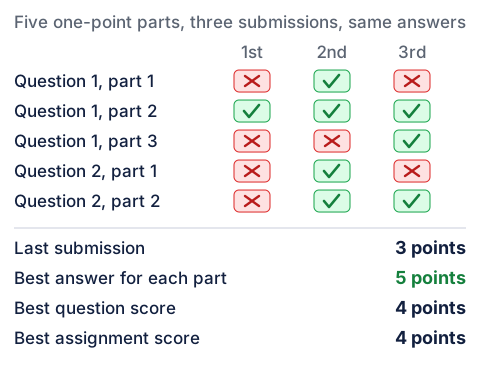
| Scoring method | Total | Where the number comes from |
|---|---|---|
| Last submission | 3 | The third submission had three parts right |
| Best answer for each question part | 5 | "Each of 5 question parts was answered correctly at least once" |
| Best question score | 4 | Question 1's best single submission scored 2, question 2's best scored 2 |
| Best assignment score | 4 | "The most points earned for the assignment in a single submission was 4" |
Cengage notes that best answer for each question part "will always result in the highest possible score", and that the available methods depend on the submission rule. If you have ever answered everything correctly at some point and still finished on 60%, this table is your explanation — along with the warning Cengage repeats on five of the eight pages in the student guide's Scores and Grades section: "You might receive fewer points if you change a correct answer, submit it, and then submit your original answer again. This applies even when best grading is used."
Points adjustment sits on top of that as a separate setting. Cengage's documented example starts deducting on submission number 3 at 25% each time, giving available credit of 100%, 100%, 75%, then 50%. A 4-point question answered correctly on the fourth submission earns 2.00 points. It is a published schedule, and the floor is documented too: "point adjustments will not result in scores less than 0."
Why the number in your LMS does not match the one in WebAssign
If your course lives in a learning management system — for many readers that means Canvas — the score in the gradebook arrived by a sync, not a calculation, and Cengage's grade sync page sets the expectation: "WebAssign grades sync automatically with your LMS, and should take 5 minutes or less." Two documented limits explain most mismatches. First, "WebAssign only syncs assignment scores that count toward student grades. Hidden and practice assignment scores are not synced." Practice work you finished will not appear. Second, under the advanced integration, final grades and category averages are not pushed at all. Cengage's entry on that reads, under the heading Cause, "This behavior is intentional", with the resolution "Calculate the final score or category averages in Canvas." Your course total is your LMS's arithmetic on the item scores it was handed, not a figure WebAssign worked out.
Work a rejection in this order
Every step below is free; the next click is not. The first three tell you which check failed before you spend anything.
Where your instructor enabled them, the tip states whether significant figures or units are checked, and the icon appears beside boxes that check digits. That glance tells you which regime you are in.
Fractional? The tolerance may be 0, and a decimal will never land. Coded to a digit count? Recompute the count from the operation rules above, not from your textbook's.
Keep every intermediate value in the calculator and round once, at the end. If an earlier part feeds this one, redo it rather than reusing what you submitted.
Expand Scoring and Assignment Information for the submission rule and the allowance. Under Entire Assignment, one click spends a submission on everything.
Cengage is specific: "Describe the problem, reference both the assignment and question for which it happened, and include the answer you believe to be correct." Ask Your Teacher reaches your instructor and TAs. "If your instructor believes the question itself is not working correctly, they can report a question error to WebAssign." That can fix the item for everyone; resubmitting the same number never will.
None of this makes WebAssign pleasant. It does make it legible. Once you know that the value of your answer and its form are scored separately, and that the form rules are three defaults rather than one, a red X stops being a verdict on your algebra and becomes a short list to check. Often the real problem underneath is four problem sets due in one week, and a tracker that shows what is due when prevents more lost submissions than any formatting rule.
If the week has already gotten away from you, our WebAssign course help runs as ongoing weekly support from $37.89 a week: an expert prepares the material ahead of each deadline and hands it back with the working shown, so you can check it and enter it yourself. We never ask for your login and we do not submit anything on your behalf. What goes in the box stays yours to stand behind.