Live Chat

Respondus LockDown Browser and Respondus Monitor are two products from one company, and only one uses your camera. LockDown Browser locks your computer for the length of the exam. Respondus Monitor is a recording layer an instructor switches on top of it. If your exam requires only the browser, nothing about you is recorded, and Respondus’ own privacy documentation says so.
That is the short answer. The harder question is which of the two your exam actually uses, and almost nothing published answers it. You can read it off the exam title before you install anything, because Respondus requires an exact string there.
- LockDown Browser has no camera. Its privacy supplement names three situations in which it processes anything about you, and none is a recording.
- Respondus Monitor is the part that records — and it now has three capture modes, one of which uses no webcam at all.
- The exam title tells you which is on. On Canvas and Brightspace it must end “- Requires Respondus LockDown Browser + Webcam” when Monitor is required.
- A flag is a review trigger, not a verdict. Respondus states its computer vision “does not make any determinations, automated decisions, or recommendations.”
- The ranking can change after you finish. An instructor can switch the flagging sensitivity once the exam is over.
- No camera does not mean no supervision. One configuration pairs the browser with a live video call.
What Each Product Actually Is
LockDown Browser is a browser. Respondus describes it as “a custom browser that locks down the testing environment within a learning management system.” You install it once per device. In the vendor’s words, “Students are unable to copy, print, access other applications, or visit other websites during an online exam,” and “An assessment cannot be exited until the student submits it for grading.”
Respondus Monitor is a recording layer. Respondus calls it “a fully automated proctoring solution” and is explicit about the dependency — “It starts with LockDown Browser” — so Monitor cannot run alone; its privacy supplement says it “must be used in conjunction with LockDown Browser.” What it adds is capture, and what it captures is a setting your instructor picks per exam.
The decisive evidence is not marketing copy. Respondus publishes two separate privacy supplements, both effective 24 July 2026. The LockDown Browser one enumerates its whole scope: “There are three instances where LockDown Browser Processes a Student’s Personal Information: when a Student uses the ‘Help Center’ to troubleshoot a technical issue with LockDown Browser, when a Student uses the ‘Early Exit’ feature, and when LockDown Browser detects that its security protections may have been compromised, tampered with, or bypassed.” Nothing in that list is a recording. The Monitor supplement lists what the other never mentions: “Sensory data, including video and audio recordings and photos” and “Sensitive Personal Information, including facial templates.”
| Compared on | LockDown Browser | Respondus Monitor |
|---|---|---|
| Uses your camera | No | Yes, unless the instructor selects Screen Only |
| Can run on its own | Yes | No — requires LockDown Browser |
| What Respondus says it processes | Identifiers, network activity, education records, in three named situations | Video, audio, photos and facial templates, plus everything on the left |
| Left for a human to review | Nothing is recorded | Your instructor, or an LMS administrator |
Two universities say it plainly. Lone Star College (modified 2 June 2026) describes “Respondus LockDown Browser, which is not a proctoring solution but limits what a student can do when taking an exam.” Ohio State is blunter: it “does not monitor or flag student behavior. It simply locks down the student’s computer until the exam is submitted or exited.”
“No camera” is a fact about the software, not about your exam. Respondus markets LockDown Browser as the standard for securing exams “in classrooms or proctored environments” — rooms with a person in them. Read the room, not just the software.
How to Tell Which One Your Exam Uses
This part is mechanical, and seems to be published nowhere for students. The exam title is not decorative; Respondus keys on it. From the support article instructors are sent to when settings and title disagree: “For Canvas and D2L Brightspace: if Monitor is required, the exam’s title must end with: ‘- Requires Respondus LockDown Browser + Webcam’.” The next line matters too: “If it does not have that exact string, or something appears after that string, this could be the source of the problem.”
The negative case is documented too. When Monitor is meant to be off, Respondus tells instructors to “make sure that the word ‘webcam’ does not appear anywhere in the quiz title.” Its absence is a requirement, not an oversight.

| Your learning system | What the title carries when Monitor is required |
|---|---|
| Canvas, D2L Brightspace | The title ends with “- Requires Respondus LockDown Browser + Webcam” |
| Blackboard Learn | “QuizName (**Webcam**) - Requires Respondus LockDown Browser” |
| Any of them, Monitor off | The word “webcam” does not appear in the title at all |
Ohio State publishes a student guide answering half of this — “Next to the quiz name in Carmen you will see a notification that the quiz Requires Respondus LockDown Browser” — and never mentions a webcam, Monitor or a camera anywhere on it. That is the shape of most campus documentation. (Our guide to how Canvas is laid out shows where quiz titles live.)
One caution on scope: that article predates the Screen Only mode described next, so it does not cover how that mode titles an exam. If your title carries “+ Webcam”, treat the webcam as required. If it does not and you are unsure, ask your instructor which Monitor setting they chose.
It Is Not Two Configurations, It Is Five
Every page that ranks for this explains it as two products. Two of the newer configurations change what is actually captured.
Monitor has three capture settings. Two are named in the second-camera documentation — “Select either Webcam Only or Webcam + Screen from the Respondus Monitor settings” — and a third arrived in November 2025: “The instructor selects ‘Screen Only’ from the Respondus Monitor settings,” after which “students are prompted to allow their screen to be recorded.” Screen recording of any kind “is only available for exams that use both LockDown Browser and Respondus Monitor,” so a screen recording is always Monitor, never the browser alone.
Then the configuration that surprises people. Institutions licensing both get an Instructor Live Proctoring option, which “uses LockDown Browser to prevent cheating on the computer itself, while the instructor watches students via video conferencing.” Zoom, Teams and Meet are among the tested systems. Respondus records nothing here; your camera is on because you are in a video call.
| Configuration | Camera | Screen recorded | Who reviews it |
|---|---|---|---|
| LockDown Browser alone | No | No | Nothing to review |
| Monitor — Webcam Only | Yes | No | Your instructor, afterward |
| Monitor — Webcam + Screen | Yes | Yes | Your instructor, afterward |
| Monitor — Screen Only | No | Yes | Your instructor, afterward |
| Browser + Instructor Live Proctoring | Yes, via the video call | No | Your instructor, live |
One further option sits on top of the two webcam modes rather than adding a sixth row. Since a beta release in February 2026, instructors can require a second camera, and Respondus is specific that “The second camera must run on a separate device, not the same computer.”
What a Flag Actually Is
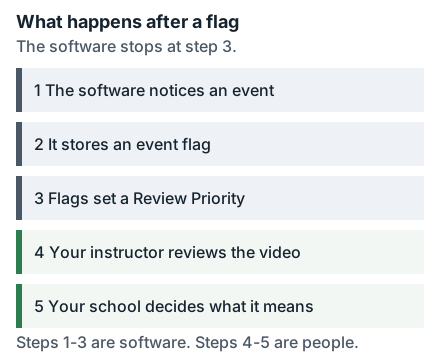
If Monitor is on, the software marks moments. Those marks are event flags, and the useful thing to know is how ordinary most are. Respondus says so itself: many “do not involve machine learning and are simply indications of an event occurring or an exam milestone reached (e.g. internet interruption, webcam was disconnected, a question was answered, etc.).” A dropped connection is a flag. Answering a question is a milestone.
The flags roll up into one value: “The summary information that is provided to the Instructor includes an overall review priority value for an exam session that helps the Instructor determine whether exam violations have occurred.” It is a ranking — which sessions an instructor opens first. Respondus calls it a Review Priority score and says it helps an instructor determine whether a violation occurred; it is not itself a finding that one did.
Then the sentence that settles it, from the same document: “The computer vision in Respondus Monitor exclusively generates event flags and alerts and does not make any determinations, automated decisions, or recommendations. Institutions, acting through Instructors and other Administrators, are solely responsible for interpretation and decision-making of how to respond to event flags generated with computer vision.”
A flag count is a weak fact on its own. The system has three sensitivity levels — “Strict, Standard, and Relaxed. The default setting is Standard” — and “an instructor can select it after students have completed their exams.” When they do, “the Review Priority scores and the rankings of the proctoring sessions are immediately updated for the instructor.” Handheld-device flags behave the same way: where calculators are allowed, that flag type “is easily adjusted after the assessment.” The same recording can produce different numbers depending on a dropdown someone changes next week.
Respondus is candid about one flag type. Where a session shows a run of “Missing” flags, its support article says “it indicates the automatic video analysis could not detect the students face initially identified at the start of the recording” — then adds: “The students may not be missing, but the light or environment may have caused the students to appear as though they were in fact missing.” The flag records what the camera could resolve. Our post on what online proctoring actually catches follows the same pattern across other platforms.
What Gets Recorded, and Who Sees It
If your exam does use Monitor, Respondus describes the startup sequence for students: “Additional steps may be required by your instructor, such as showing your identification, or recording a brief video of your examination setting.” Those two steps are the ID check and the room scan. Once questions load, “a ‘Recording’ icon will appear at the top right of the screen” — there is always a visible indicator. Our preparation checklist covers check-in in detail.
Four facts that rarely appear on campus pages:
- Retention. Two Respondus documents answer this differently, and the company does not reconcile them anywhere. A support article last updated in 2023 says “Videos of exam sessions are stored for a total of 5 years,” and tells an institution that wants less to submit a ticket. Respondus’ 2026 privacy supplement locates the authority elsewhere: “generally, when a Student’s information is collected in order to use Respondus Monitor, the Institution has control of the retention and deletion of that information, and the Institution’s data retention policies and practices apply.” Treat five years as the vendor’s default and your school’s policy as the one that governs — so ask your school, not Respondus.
- Access. “Only the instructor will have rights to view the videos, or someone with higher login credentials (e.g., LMS administrator).”
- The ID photo is data. Showing a driver’s license or passport hands over what is printed on it; Respondus lists address, passport number, license number and demographic information such as sex and national origin among the categories that can result. A student ID card is a smaller disclosure, if your instructor accepts one.
- Face templates are temporary. Monitor builds a template of the face present at the start to check the same person stays in frame. Those templates “only exist in temporary memory on the Student’s computer and are automatically cleared from the computer by Respondus Monitor immediately after exam completion” — though “under some laws, these temporary facial templates may be considered biometric information,” and an administrator can switch the feature off.
One smaller mechanic causes avoidable panic. If you leave before submitting, “students who leave an exam before submitting it will have to provide a reason for exiting the exam early” — and that reason goes to your instructor. Respondus itself notes “there are often legitimate reasons why a student might need to leave an exam early.” Write a real sentence in that box.
Accessibility, Accommodations and Opting Out
LockDown Browser runs on the same engine as Chrome, and Respondus states it “does not block screen readers, and conforms to WCAG 2.1.” Its knowledge base lists tested compatibility with NVDA, VoiceOver, ChromeVox and a range of text-to-speech and dictation tools, and an external firm “audits LockDown Browser and Respondus Monitor annually.”
Institutions do not always agree in practice. Ohio State tells instructors the browser “may have limitations in its accessibility for students reliant upon screen readers and keyboard navigation,” and to “work with the Office of Student Life Disability Services to develop an accommodation plan with an alternative form of proctoring.” That route exists at essentially every US institution.
Whether you can decline Monitor is a school decision, not a Respondus one: “If an Institution uses Respondus Monitor for online exams, Students may be able to choose whether to participate or not.” Each institution decides how that choice is exercised. Note the “may.” The Johns Hopkins School of Nursing publishes a flat answer for its faculty: “using Respondus Monitor is not something students can opt out of if the course uses it for exams (unless they have special accommodations that state otherwise).” The parenthesis is the point — accommodations are the mechanism, and a general objection usually is not.
If Your Session Was Flagged
Being told a session was flagged is not being told you did something. It means your instructor has a video and a list of timestamps. Results reach them quickly — Respondus says the average is “now less than 10 minutes,” down from several hours — worth knowing if your campus page still quotes the old figure.
Flags have types: missing face, second face, a handheld device, an internet interruption, a milestone. Ask which one, and at what timestamp.
A sibling who opened the door, a laptop that shifted, a router that dropped. Say it plainly to your instructor before it becomes a formal matter.
You are the subject of it. Practice varies, but asking to view the segment in question is a normal request when a decision rests on it.
Every US institution publishes an academic integrity process with defined steps, notice and an appeal. A reading of a video starts that process, not concludes it.
Much of the fear here attaches to the wrong half of it. LockDown Browser, alone, records nothing and decides nothing. Monitor records — and also decides nothing. Every consequential judgment here is made by a person who can be written to and shown the ordinary explanation for whatever the camera saw. What follows an accusation is institutional rather than technical: see what happens if you are accused of cheating on an online exam and our guide to proctored exams.
If the real problem is the material getting ahead of you, that is more fixable. Apex Essays works on the preparation side — subject tutoring, practice questions, walkthroughs of the material — from $37.89 a week, or from $7.89 a page for a single task, both floors rather than fixed prices. You take your own exams; we never ask for your login or touch your course account. See proctored exam preparation.