 Live Chat

Your syllabus says Connect. The tile in your assignment list says SmartBook. An email about course materials says LearnSmart. Those are not three purchases, and not three words for one thing. Connect is the platform — the site you log into, holding every assignment your course grades. SmartBook is one assignment type inside it, the adaptive reading one. LearnSmart is a McGraw Hill product name that has all but disappeared from Connect's current pages; it still lives on the company's school platform, which is why the students who meet it are usually in a dual-enrollment or high-school course.
The part that is documented but never assembled in one place is that the two scoring models behind those names have almost nothing in common. A Connect question-bank assignment is scored on whether your answers are right. A SmartBook assignment is scored on how much of it you finished before the due date. McGraw Hill's own student overview puts it in one sentence with no accuracy term in it: "Your assignment score is the percentage complete on due date as indicated by the progress bar."
- Connect is the platform; SmartBook is an assignment type in it. McGraw Hill's product page calls SmartBook "An adaptive, assignable reading experience that personalizes student learning."
- A SmartBook score is completion, not accuracy. It is the progress bar's percentage at the moment the due date arrives.
- Your score locks at 100% completion or at the due date, whichever happens first. That is McGraw Hill's rule, and the reason finishing early is worth something.
- Recharge keeps the bar moving and the score still. Work done after the due date earns no credit toward your score.
- The confidence buttons do not affect your grade. The documentation is emphatic in its own capitals.
- Everything else in Connect runs on instructor settings — attempts, deductions, partial credit and answer tolerances, all set per assignment.
Three names, and where each one actually lives
Start with the container. McGraw Hill describes Connect as "a digital learning platform that supports students in working through challenges" — in practice, the site holding your reading, homework, quizzes and gradebook for one course. The same page lists SmartBook as a tool inside it: "An adaptive, assignable reading experience that personalizes student learning."
Two words in that description carry weight. Assignable means an instructor has to build it before you can touch it: the assigning guide is blunt that "students can no longer access SmartBook in self-study mode." Adaptive means the questions you get depend on the answers you gave, so the same assignment runs long for one student and short for another. McGraw Hill says as much about its own time estimate in the SmartBook 2.0 user guide: "This is an estimate, the amount of time an assignment takes will be unique for each student."
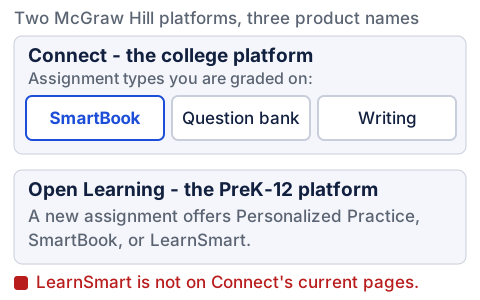
So where did LearnSmart go? Counted rather than assumed: on 21 August 2026 the word appears zero times on Connect's product page, on the SmartBook product page, in the higher-ed digital-products index, in the Summer 2026 Connect release notes, or in the Connect student support index. That is a claim about those pages, not about everything McGraw Hill publishes — and one current Connect support page does still carry the name. McGraw Hill's onboarding article for instructors, page-stamped 24 March 2026, lists "Creating LearnSmart Assignments" and "LearnSmart: Best Practices and FAQs" among its tutorials. Follow either one and you land nowhere: the first points at a McGraw Hill host that no longer resolves, the second at a PDF the company built in 2013.
It is not dead, though. A McGraw Hill support article for its PreK-12 Open Learning platform, page-stamped 24 March 2026, still tells teachers to "Click Personalized Practice, SmartBook, or LearnSmart. The option will vary based on the program being used."
The relationship is older than either page, and the clearest first-party account is McGraw Hill's own Connect SmartBook Standalone Training Guide — created September 2014, quoted here as history rather than current guidance. Students working an instructor's assigned content could use "LearnSmart alone, which will give them access to just the adaptive review for the assigned topics," or "SmartBook, which will allow them to work through the assigned SmartBook content while also having access to the adaptive reading experience as well." Same material, two ways in: LearnSmart was the questions, SmartBook the questions plus the book.
If a syllabus says LearnSmart and your Connect course has no such tile, that is a wording problem, not a missing purchase. Ask your instructor which assignment they mean before you buy anything else.
How a SmartBook assignment is scored
Here is the sentence that does the work, from McGraw Hill's student grading document, created 6 February 2025: "Your score locks in when you either achieve 100% completion OR the due date arrives, whichever happens first." The instructor version says it from the other side: the reported score "reflects how much of the assignment the student completed before the due date."
Read that as a clock, not a test. Two things stop a SmartBook assignment — finishing it, or the deadline — and whichever arrives first fixes your number.
The bar counts concepts, not questions. The SmartBook 2.0 overview describes three categories — "concepts not started, concepts in progress, and concepts completed" — with only a "maximum of 5 at any one time" in progress. A wrong answer does not subtract from the bar. It holds the concept in the middle column and sends more questions at it, and if you keep missing them SmartBook "will force a pause in the questions and direct students to 'Learn About This.'"
Be exact about what that is and is not measuring, because McGraw Hill sells SmartBook on mastery and scores it on completion. Its student assignments guide says SmartBook keeps "adapting to pinpoint where you need help to ensure that you master the course content." But "mastered" is not a state SmartBook records. Across the six SmartBook documents this article cites — the two student PDFs, the two instructor PDFs, the assigning guide and the user-guide page — the word does not appear in any form: not as a score, not as a status, not as a report column. Completion is finishing the work; mastery is producing it again later, unprompted, on an assessment you did not schedule — and a SmartBook grade is entirely the first of those.
McGraw Hill does run the second, on a different platform. In ALEKS, "Mastered" refers to topics a student "has demonstrated mastery of in a Knowledge Check", while "Learned" counts topics "that a student has practiced successfully in the Learning Path but has not yet been assessed on through a Knowledge Check." Two named states and one door between them. SmartBook has one state that scores, and the door is the calendar.
One more surprise: the confidence buttons are not a scoring mechanism. The student overview says so in its own capitals — finishing a question means "you will check your answer AND rate your confidence in your answer," but "The confidence level does NOT affect your progress bar, but it DOES encourage you to think about your level of understanding."
Recharge, and the two numbers that disagree
After the deadline the assignment does not close. It changes mode. The student document: "After the due date passes, the assignment automatically goes into recharge mode and you can continue to work the assignment for additional study. Work completed in recharge mode will not affect your original score." Open it and a pop-up warns "you will not receive any additional credit or any further progress in recharge mode."
It is a useful study mode, and the source of the most confusing screen in Connect: two numbers over two different windows, only one of them your grade.
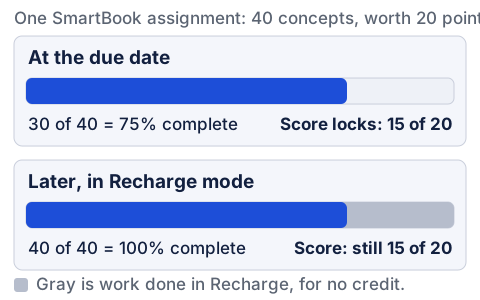
The arithmetic is exact and it is the whole trick. Thirty of forty concepts is 75%, and 75% of a 20-point assignment is 15 points. Finish the other ten in Recharge and the completion figure reads 100%, because "Completion and Time on Task include data from before the due date and after the due date in recharge mode." The score does not move, because it never counted anything after the deadline. The instructor version says the same of the percentage on its dashboard: it "includes work completed before the due date for credit and after the due date in Recharge mode for no credit."
So the completion percentage is the number misleading you. To find the real one the student document sends you back out — "To see your actual score, click 'back to assignments'" — where a graded assignment carries a "See report" link next to its title.
The due date you can see may not be the one Connect is using. The assigning guide describes a separate Late Submission Date an instructor can set, where students "still get full credit for their work" — but "Students will only see the Due Date in their view of the assignment but Connect will continue accepting scores up until the Late Submission Date." The reverse also exists: McGraw Hill's troubleshooting article notes a policy that "reduces your score a certain percentage depending on how late it was submitted (by hours or by days)." Ask which applies, and keep your own record of what is due.
Everything else in Connect: attempts, and what a second try costs
Connect's other assignments are ordinary auto-graded work, with rules set per assignment. The student guide is upfront: "Connect offers a variety of assignment types. Your instructor has set specific policies for each assignment type," and some "only allow a limited number of attempts or have a time limit."
"Attempt" and "submission" get used loosely across courseware, and no single definition survives every platform — so take McGraw Hill's. In Connect, an attempt is one whole pass at the assignment, and submitting is the act that ends one. The attempts policy lets an instructor "choose how many attempts you want your students to have on this assignment: one, two, three or unlimited." Your results page counts that same unit — "scores for each attempt, as well as the date and time submitted" — and McGraw Hill nests the two words rather than trading them — its submission-details article tells you to click your submitted assignments "to view more information about each attempt you've submitted."
SmartBook does not work this way, and the difference is not cosmetic. Across those same six documents, "attempt" appears exactly twice, both times on a results screen, and the only two appearances of "submission" are the name of the Late Submission Date setting. There is no attempt limit to spend and no Submit button to forget. The clock does that job instead.
| Setting, in McGraw Hill's words | What it does to you |
|---|---|
| "Starting over means your students will complete each assignment attempt from beginning to end, regardless of what they had previously answered correctly." | A second attempt is a blank assignment. Nothing carries over. |
| "Revise the previous attempt means your students will return to the assignment and be able to edit what they had already submitted." | A second attempt is your last one, editable. |
| Instructors may "deduct a percentage from the scores of students who use additional attempts", and may "compound the deduction for each attempt". | A retry can score lower than the answers deserve, and a third try harder than a second. |
| Study attempts let students "take assignments an unlimited number of times, without affecting their grade, after the due date has passed." | Practice that cannot help or hurt your score. Connect's equivalent of Recharge. |
So "how many attempts do I get" has no general answer, and neither does "does a retry cost me points." Both are printed on the assignment details screen before you click Begin.
Partial credit is three settings, not two
Ask whether Connect gives partial credit and the honest answer is that it depends on a setting you cannot see — and there are three settings, not the two people assume. McGraw Hill's documentation for check-all-that-apply questions lists them: "as authored, partial credit scoring and all or nothing scoring." The default is neither extreme — "As authored is the default scoring method" — so the question writer decided, question by question, and within one assignment "they may not all be scored the same way."
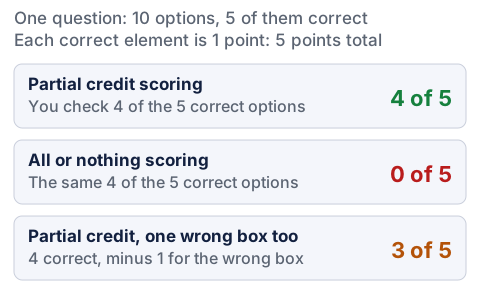
In McGraw Hill's words: "Let's say your check all that apply question contains 10 elements, of which five are correct. Each correct element is worth one point, so your question is worth five points total. When using partial credit scoring, a student who selected four of the five correct options will receive four points. When using all or nothing scoring, that same student will not receive any points."
The third row of the figure is arithmetic on a rule rather than a number McGraw Hill prints, and it is the rule most students never read: "Unchecked answers are treated as distractors. They are not worth proportional credit, but you will lose credit (equivalent of one correct answer) for clicking them." Apply that to the same student: four correct selections earn four points, one wrongly checked box costs one correct answer's worth, and 4 minus 1 leaves 3 of 5. Leaving a box alone when you are unsure is free. Checking it is not.
Form and value are scored separately here too
Auto-graders grade the value of your answer, and they separately grade its form — and Connect has a whole policy category for the second one. The Question Bank policy guide, created 29 June 2026 and linked from a support page updated in August 2026, lists "five categories of policy settings: basic, attempts, tolerances, resources, and feedback."
Tolerances come in two kinds. "Language tolerance settings allow you to accept a wider range of answers for fill in the blank responses" — how much your wording can differ. "Under numeric tolerance settings, you can set a percentage tolerance for your assignment" — how far your number can sit from the key and still count. The guide then tells instructors not to use the assignment-wide version, "because most questions have individual tolerance settings, and therefore, any percentage tolerance you set for the overall assignment will override the individual settings for each question." So in a normal Connect course the window your answer has to land in was set by whoever wrote that one question — not by a course-wide rule, and not by any convention you can look up.
Why Connect and your school's gradebook disagree
Most Connect courses are paired with a learning management system, so one assignment has a score in two places. The rule across courseware is constant: the courseware grades the work and holds the score, and your LMS gradebook receives a copy. McGraw Hill's instructor document says so plainly: "If you have paired this assignment with your LMS, this score will also appear there." The policy guide adds the case that catches people out — if feedback is being held back, "the total score will still automatically transfer to the learning management system, even if the score is not visible in Connect."
When they differ, that is a documented condition with a documented fix, and the fix is not yours to perform. McGraw Hill's troubleshooting article: "If your score is different in Connect than in your school's learning management system gradebook," your instructor "may need to run a manual synchronization to have the score updated." Message them, name the assignment, and say what each screen shows.
A blank is a different problem. McGraw Hill notes that "Your instructor can limit the feedback that is available to you upon submission. If you see a dash (-) instead of a score, it means the score is hidden and may become available at a later time." A dash is not a zero. Connect also ships a Proctorio integration, so if a quiz asks to check your environment, our guide to what a proctored exam involves covers what it does and does not do.
None of this makes Connect pleasant. It does make it legible: one platform, two scoring models, and a set of switches your instructor threw before the term started. The SmartBook clock is the one worth respecting, because it is the only score here that a good week of work after the deadline cannot improve.
If the real problem is four courses with SmartBook deadlines in the same week and you are picking which one to lose, that is a workload problem rather than a mechanics one. Our McGraw Hill Connect coursework help works alongside a live course from $37.89 a week: we prepare worked material and practice for the chapters you are behind on, delivered to you outside Connect. We never ask for your Connect or campus login, we never open your course, and every answer inside the platform is entered by you. The progress bar has to be yours.


